How to Track Orders and Customers on WhatsApp Without Stress

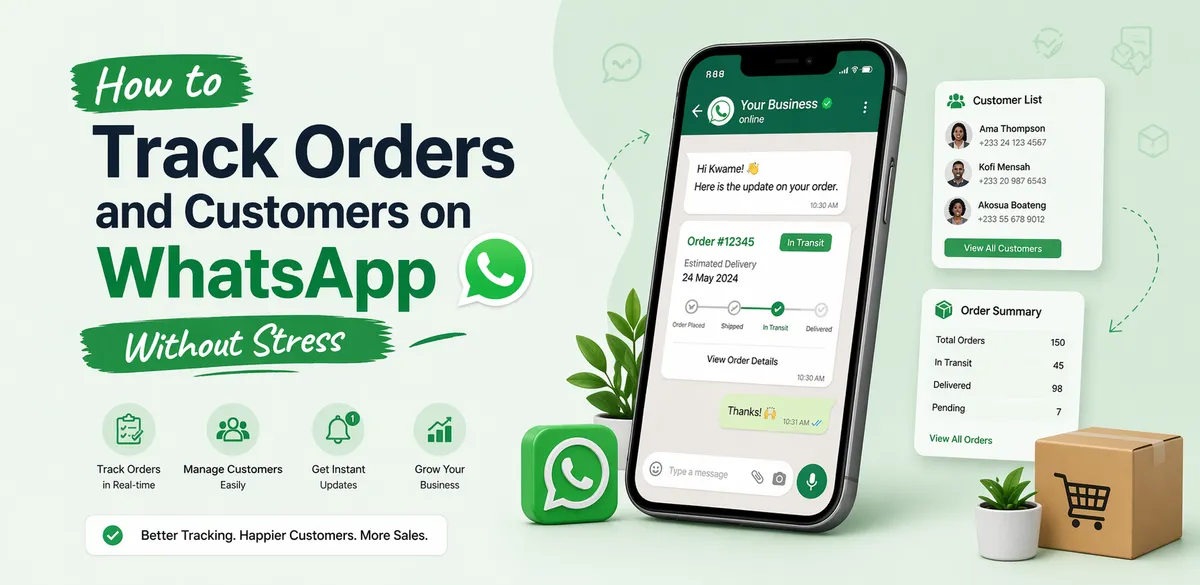
Picture a typical Tuesday for a Ghanaian WhatsApp seller doing decent volume. Thirty chats open. One customer asking where their order from two days ago has gone. Another wondering if their payment went through. Another waiting for a receipt they were never sent. You are trying to run a business in the same app your mother uses to send family updates.
WhatsApp is where the orders come in. The problem is that WhatsApp was never built to track them. There is no order list, no payment confirmation system, no customer history, and no way to see — at a glance — what has been paid, what is packed, and what is still waiting.
15M+ — Internet users in Ghana (Statista, 2025)
This guide builds a practical system from the ground up: starting with the free tools WhatsApp Business provides, then adding the order management infrastructure that makes it possible to run a serious business on WhatsApp without burning out. If you are just setting up WhatsApp Business for the first time, start with how to sell on WhatsApp in Ghana. If you are deciding whether WhatsApp alone is enough, read WhatsApp Business vs online store in Ghana.
Step 1 — Use WhatsApp Business Labels
WhatsApp Business has a built-in Labels feature that lets you colour-code conversations. It is free, it requires no external app, and it is the right starting point for any seller trying to bring order to their chats.
Setting up your labels
Go to Settings > Business Tools > Labels and create a label for each stage of your order process. A simple set that works for most Ghanaian sellers:
- New Order — customer has messaged to order, no payment yet
- Payment Received — payment confirmed, not yet packed
- Packed — packaged and ready for pickup or dispatch
- Dispatched — handed to rider or sent via bus service
- Issue — anything that needs your attention: wrong address, payment dispute, failed delivery
Open each customer conversation and apply the appropriate label. As the order progresses, update the label. You can filter your conversations by label to see, for example, all chats currently tagged as Payment Received — the orders waiting to be packed.
WhatsApp Labels are a good first step. They work well below 20 orders a week. Above that, the manual upkeep becomes another job.
The limit of labels
Labels are manual. Every label change requires you to open the conversation, tap the label, and update it. There is no summary view that shows you all orders at a given stage — only a filtered list of chats. Labels also tell you nothing about payment amounts, delivery addresses, or order contents. They are an organisation tool, not a tracking system.
Step 2 — Send Product Links, Not Photos
The single most impactful change a WhatsApp seller can make is to stop sending product photos and start sending product links. A photo starts a conversation. A link creates an order.
GHS 4.54T — Mobile money transactions in Ghana in 2025 (Bank of Ghana)
How to get your product links
In the Nuanom merchant app, open any product and tap the options icon at the top right of the product details screen. You will see options to copy the link, share it directly, or preview the listing exactly as a customer sees it. Copy the link and paste it into your WhatsApp message, your Status, or a broadcast.
To share your entire store — useful when a customer wants to browse everything — go to the Business tab and tap the link displayed under your shop’s name. The same copy, share, and preview options appear.
What happens when a customer clicks
The customer sees your full product listing and pays by MTN Mobile Money, Vodafone Cash, or AirtelTigo Money directly on the page. The moment payment clears, an order is created in your Nuanom dashboard automatically — with the customer’s name, mobile number, delivery address, items ordered, and payment status. You get a push notification. No screenshot verification. No manual logging. No back-and-forth.
This one change eliminates the payment verification step entirely — the step that, at volume, consumes more time than any other part of running a WhatsApp shop.
Step 3 — Create Orders for WhatsApp Customers
Not every customer will click a link and pay on their own. Some will DM to negotiate, ask for a custom combination, or expect you to handle everything for them. For these customers, you create the order in Nuanom on their behalf — the same way a physical POS works.
- Open the Nuanom merchant app and go to the Orders tab. Tap the + button at the top right.
- Tap Add products and search for the items the customer wants — or scan a product SKU QR code if your items are tagged. If the product has not been uploaded yet, use Collect payment instead to enter the amount and a description directly.
- Apply a Discount if you agreed a reduced price during the WhatsApp negotiation.
- Set a delivery option if the customer wants delivery. Without this, the order is automatically marked COMPLETED when the customer pays and will not appear in Orders › To Deliver for packing and dispatch.
- Leave PAID DIRECT off (the default). Nuanom sends the customer an SMS and email with a payment link. The order appears as UNPAID under Orders › POS. The customer has 3 hours to pay before the order is automatically cancelled. The moment they pay, you receive a push notification and the order moves to NEW under Orders › To Deliver.
- Or toggle PAID DIRECT on for cash payments or when you have already confirmed payment another way. Nuanom sends a receipt immediately and marks the order COMPLETED. Use this for in-person sales or for customers you are certain have paid.
The result: no mobile money number shared in chat, no screenshot to verify, no manual record to keep. The order is in your system the moment it is created, with a full audit trail from creation through to delivery.
For your sales staff: the Nuanom POS app
The order creation flow above runs inside the main Nuanom merchant app — the same app you use to manage products, configure delivery, view reports, and run your store. Your sales staff do not need access to all of that.
The Nuanom POS app is a separate, dedicated app for sales assistants who take orders — in-store and via WhatsApp — without needing full access to your business settings or product management. It gives them exactly what they need to create orders and process payments, and nothing else. Orders created through the POS app appear in the same merchant dashboard, go through the same lifecycle, and trigger the same customer notifications as any other order.
Step 4 — Track Orders Through the Full Lifecycle
Every order in Nuanom moves through a clear set of stages. At any moment you can see exactly where every order stands — no guessing, no scrolling through chats.
The order stages
- UNPAID (Orders › POS) — order created, customer payment link sent, waiting for payment
- NEW (Orders › To Deliver) — customer has paid, order ready to pack and dispatch; customer received SMS/email confirmation
- PROCESSING — order is in a batch being packed; does not appear in To Deliver (only searchable directly)
- COMPLETED — packaged and dispatched; customer receives receipt via SMS/email
- DELIVERED — confirmed delivered to customer; customer receives final confirmation via SMS/email
- CANCELED — cancelled by customer (NEW orders only), by you, or automatically after 3 hours without payment
Processing orders in batches
When you are ready to pack a group of orders, go to Orders › Batches › Create Batch. Nuanom groups up to 100 NEW orders into a batch and automatically generates:
- Delivery labels (4” × 6”) — with and without product details
- Packing slips (A4) — one per order
- Product quantities (A4) — summary of everything to pull from stock
All orders in the batch are marked PROCESSING and removed from the To Deliver view — this prevents you from accidentally processing the same order twice. When all orders are packed and dispatched, complete the batch — every order moves to COMPLETED and customers receive their receipts simultaneously. For the full guide on delivery logistics and fees, read how to make money from deliveries in Ghana.
Cancellations and exceptions
Customers can cancel NEW orders themselves at any time. UNPAID orders auto-cancel after 3 hours. To cancel a PROCESSING order (one that is inside a batch), search for it using the customer’s mobile number or email — packing slips for the batch regenerate automatically to remove the cancelled item.
Step 5 — Know Your Customers, Not Just Their Orders
Every order in Nuanom is linked to the customer’s mobile number. Search any number in the app and you can see their complete order history: every item ordered, every amount paid, every date. This is the customer record that WhatsApp can never give you.
Why this matters in practice
A loyal customer DMs you asking about a product. Before you reply, you search their number in Nuanom. You can see they have ordered from you four times in the past three months and spent over GHS 800 in total. That context changes the conversation — you can address them by name, reference their past orders, and treat them like the high-value customer they are rather than a stranger.
You can also identify patterns: which customers order most frequently, which products they buy together, and when they tend to place orders. None of this is visible in WhatsApp chats alone.
Automatic customer communications
Nuanom handles customer notifications automatically throughout the order lifecycle. Customers receive SMS and email confirmations when they pay, when their order is completed, and when it is delivered. You do not need to send any of these manually — every customer stays informed without you lifting a finger.
For your best customers, pair Nuanom with a branded mobile app — customers can track their own orders and opt in to push notifications for new arrivals, restocks, and promotions. WhatsApp brings them in; the app keeps them coming back.
Step 6 — Hand Off the Chat to a WhatsApp AI Assistant
The final step — once your Nuanom store is live and your order system is working — is to stop answering WhatsApp messages manually. The Nuanom WhatsApp AI Assistant takes over your dedicated business WhatsApp number and handles all inbound messages on your behalf: product questions, prices, stock levels, delivery timelines, and order placement.
How to set it up
- Make sure your products are listed and your delivery options and shop info (hours, delivery times) are up to date — the assistant uses these to answer accurately.
- Get a dedicated WhatsApp SIM for your business. Do not use your personal number — the assistant is not designed for personal conversations.
- Go to Business › WhatsApp AI Assistant and tap Connect. Setup is instant — no waiting around.
- Enter your dedicated WhatsApp number and tap Submit, then use the pairing code shown to link it under WhatsApp’s Settings › Linked Devices. You are done.
How conversations are managed
The assistant organises all conversations into three buckets:
- Ongoing — active conversations the AI is handling. You do not need to touch these.
- Unresolved — conversations the AI could not resolve on its own. You receive an alert. Open the conversation, read the summary and thread, and use the Resolve button to tell the AI how to respond.
- Resolved — completed conversations where the customer’s needs have been met.
The practical outcome: you wake up to paid orders that came in overnight. Customers who messaged at midnight got accurate, real-time answers in seconds. Your time during the day goes toward sourcing, packing, and growing — not answering “is this still available?” for the fifteenth time.
Common Mistakes to Avoid
- Using your personal number for business — when you hand it to an AI assistant or a staff member, your personal messages go with it. Use a dedicated business SIM from day one.
- Manually checking your mobile money balance to confirm payments — at 30 orders a day this is an hour of daily admin that a payment link eliminates entirely.
- Forgetting to set the delivery option when creating an order — without a delivery option, the order is treated as an in-store order and is not processed for delivery. It skips the Orders › To Deliver queue entirely, going straight to READY then COMPLETED, so you will never see it there to pack and dispatch.
- Toggling PAID DIRECT on for unpaid orders — PAID DIRECT is for cash payments or orders you have already confirmed outside Nuanom. Using it for a customer who has not yet paid sends them a receipt for money you have not received and marks the order COMPLETED immediately.
- Waiting until you are overwhelmed to set up the AI assistant — setup takes under 10 minutes. The time cost of doing it at 5 orders a day and at 50 orders a day is the same. Do it early, before the message volume makes it feel urgent.
The system described in this guide — Labels for basic organisation, product links for automatic order creation, the Nuanom POS flow for negotiated orders, and the AI assistant for 24/7 customer communication — takes a few minutes to hours to set up (depends on number of SKUs) and saves that time back every single day from that point forward.
Ready to build it? Start a free Nuanom store and connect it to your WhatsApp today — product links, mobile money payments, automated order management, and customer receipts all included at no cost.
Frequently asked questions
Can I track orders on WhatsApp without a separate app?
WhatsApp Business has a Labels feature that lets you colour-code conversations by order status. It works as a basic system at low volumes. Once you are regularly getting 20 or more orders a week, a dedicated order management tool is essential — orders in chats do not give you the unified view, payment confirmation, or customer history you need to operate reliably.
What is the best way to manage customer orders from WhatsApp?
Send customers a Nuanom product link instead of a product photo. They click, pay by mobile money, and the order is created in your dashboard automatically — with their name, delivery address, items, and payment status all in one place. For customers who message to negotiate first, create the order in the Nuanom merchant app (Orders > ‘+’) and leave PAID DIRECT off. Nuanom sends them an SMS and email with a payment link. You get a notification the moment they pay.
How do I know if a WhatsApp customer has paid without checking manually?
When you create an order in Nuanom and leave PAID DIRECT off, the system sends the customer a payment link via SMS and email. The moment they pay by mobile money, you receive a push notification and the order moves from UNPAID (in Orders > POS) to NEW (in Orders > To Deliver) automatically. There is no screenshot to verify and no balance to check.
Can I see all my WhatsApp orders in one place?
Yes. Every order you create in Nuanom — whether from a product link, a manual POS order, or your website — appears in the same dashboard. Orders waiting for payment are under Orders > POS. Paid orders ready to dispatch are under Orders > To Deliver. You can search any order by the customer’s mobile number or email at any time.
What happens when a WhatsApp customer doesn't pay after I create their order?
Orders created in Nuanom with PAID DIRECT off give the customer 3 hours to complete payment. If they do not pay within that window, the order is automatically cancelled. You do not need to follow up or chase — the system handles it. The cancelled order stays in your records so you can reference it if the customer comes back.
How does a WhatsApp customer receive their order receipt?
Nuanom sends receipts automatically. When a customer pays for an order, they receive an SMS and email confirmation immediately. When you mark an order as COMPLETED or DELIVERED, they receive another SMS and email with their final receipt. You do not need to send anything manually.
Can I track which customers order from me most frequently?
Yes. Every order in Nuanom is linked to the customer’s mobile number. You can search orders by customer number or email to see their full order history — what they ordered, when, and how much they spent. This is the customer record you can never build from WhatsApp chats alone.
What is the Nuanom WhatsApp AI assistant and how does it help?
The Nuanom WhatsApp AI Assistant takes over your dedicated business WhatsApp number and responds to customer enquiries automatically — product questions, prices, stock availability, delivery timelines. When a customer wants to order, the AI sends them the payment link. Orders go straight into your Nuanom dashboard. You set it up once under Business > WhatsApp AI Assistant and it runs 24/7 without you needing to respond to individual messages.

Related